This guide is part of our series on AI for technical SEO audits.
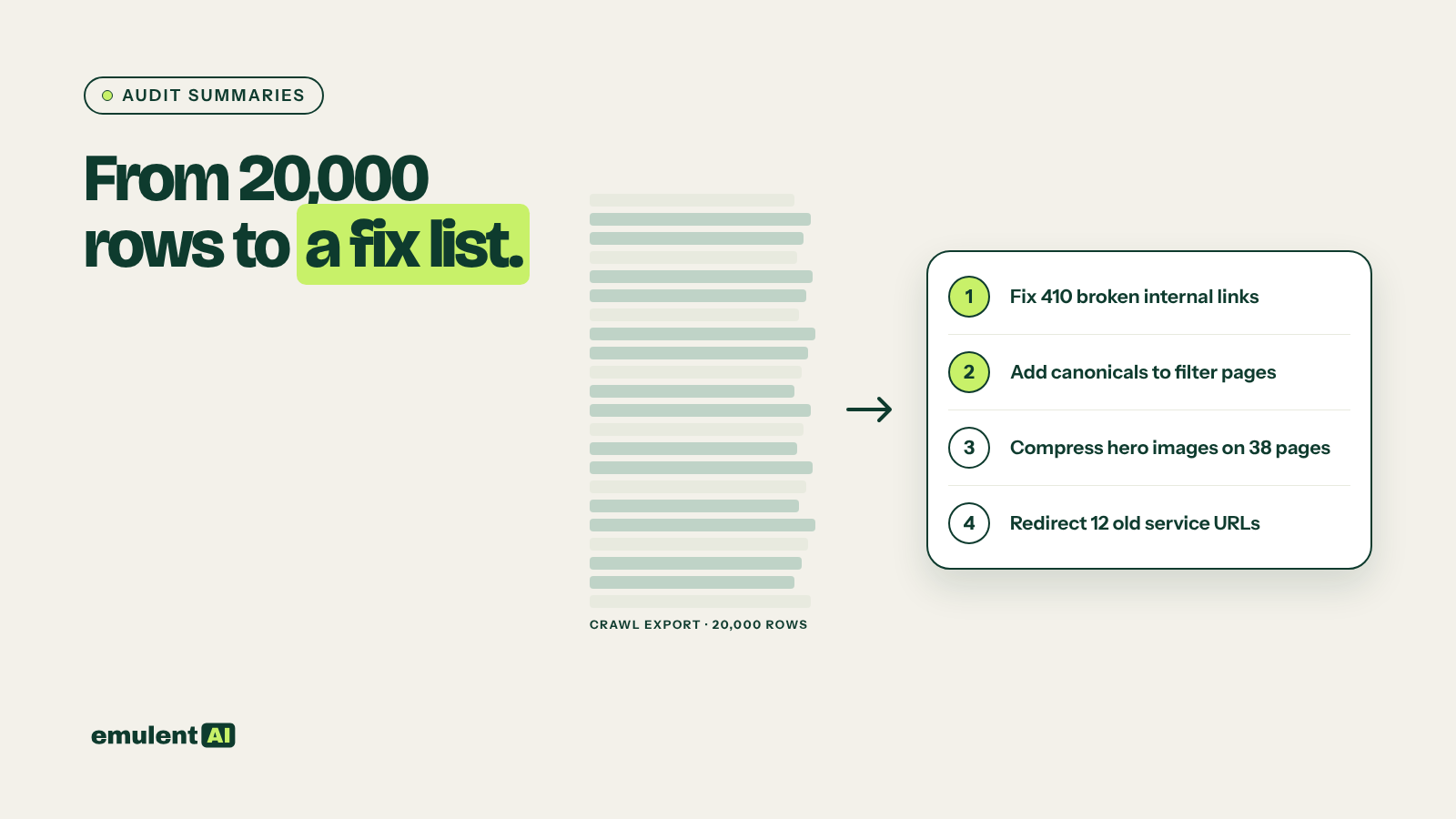
An audit nobody acts on is wasted work. Most technical audits fail at the hand-off: a 60-page PDF or a spreadsheet of 30,000 rows lands with a developer or client who cannot tell which problems matter. AI can turn Screaming Frog and Semrush Site Audit exports into a short, ordered list of fixes, written for the person doing the work, with the evidence attached.
What you need
- A full Screaming Frog crawl, connected to Search Console and GA4 under Configuration > API Access
- A Semrush Site Audit report for the same site
- Search Console’s page indexing and Core Web Vitals reports
- An AI assistant that reads CSV files, such as Claude
- A note on who will read the report: a developer, a marketing manager, a business owner
Step 1: Crawl with the right settings
Before exporting anything, check the crawl reflects the real site:
- Enable JavaScript rendering if the site relies on it for content or links
- Crawl with the Googlebot smartphone user agent, since Google indexes the mobile version
- Include the XML sitemap so orphan pages show up
- Respect robots.txt, but note any blocked sections so you can mention them
Step 2: Export the issues
From Screaming Frog, use Reports > Issues Overview (or Bulk Export > Issues > All) to get every issue with its type, priority and URLs. From Semrush Site Audit, export the Issues list with errors, warnings and notices. Also export the Internal HTML tab with status code, indexability, clicks, impressions and sessions for each URL, so the AI can weigh issues by traffic.
Step 3: Have the AI merge and score the issues
Attached are: (1) Screaming Frog issues export, (2) Semrush Site Audit issues
export, (3) Screaming Frog internal HTML export with Search Console clicks and
GA4 sessions per URL.
1. Merge issues from both tools that describe the same problem. Note which
   tool found each.
2. For each issue, count affected URLs and sum the clicks and sessions of those
   URLs.
3. Score each issue on:
   - Impact: could it stop pages being crawled, indexed or ranked? (high,
     medium, low)
   - Reach: share of traffic-earning pages affected
   - Effort: likely fix effort (template change, plugin setting, one-off
     edits, developer project)
4. Separate issues that affect few or no traffic-earning pages into a
   "low priority" list.
5. Note whether each issue is likely caused by a template, a plugin, or
   individual pages, based on URL patterns.
Output CSV sorted by impact, then reach.
The split between template issues and page issues saves the most time. One template fix can solve 2,000 rows at once.
Step 4: Check the top findings yourself
Open five example URLs for each high-impact issue and confirm the problem exists. Crawlers report false positives: a “missing H1” that is really in a component the crawler did not render, or a redirect chain that only appears with a trailing slash. Use URL Inspection in Search Console for any indexing-related issue. If the issue involves pages not being indexed, follow our guide to diagnosing indexing problems before writing the fix.
Step 5: Write the fix list for the reader
Write the fix list for [developer / marketing manager / business owner].
For each of the top 15 confirmed issues, write:
- Title: what to fix, in plain words (for example "Remove noindex from
  service pages")
- Impact: one or two sentences on what it costs the site
- Where: the template, plugin or URLs affected, with 3 example URLs
- How to fix: specific steps for this site's platform (WordPress)
- How to check it's done: what to look for after the change
- Priority and estimated effort
Avoid jargon for non-technical readers; define any term you must use.
Group the list by who does the work: developer, content team, SEO.
For a client report, ask the AI for a one-page summary on top: the three to five things that will make the biggest difference, in order, with no tool names or issue codes.
Step 6: Turn fixes into tickets
If the developer uses Jira, Asana, Trello or similar, ask the AI to turn each developer fix into a ticket with acceptance criteria, example URLs and the exported evidence as an attachment. Clear acceptance criteria (“all URLs in /services/ return indexable and appear in the sitemap”) prevent back-and-forth.
Step 7: Re-crawl and compare
After fixes ship, re-crawl and ask the AI to compare the two issue exports: what was fixed, what is still open, and anything new. New issues after a release are common, especially after theme or plugin updates. Running Semrush Site Audit on a weekly schedule catches them between full audits.
Some fixes lead to their own workflows. Pages missing structured data go to our guide to schema markup generation, and URL changes need a redirect map before they go live.
Put this to work with Bill.
Send Bill your exports and tell him what you are trying to fix. He’ll tell you which of these workflows to run first.
Contact Bill directly
Or call 773-791-3197