This guide is part of our series on AI for technical SEO audits.
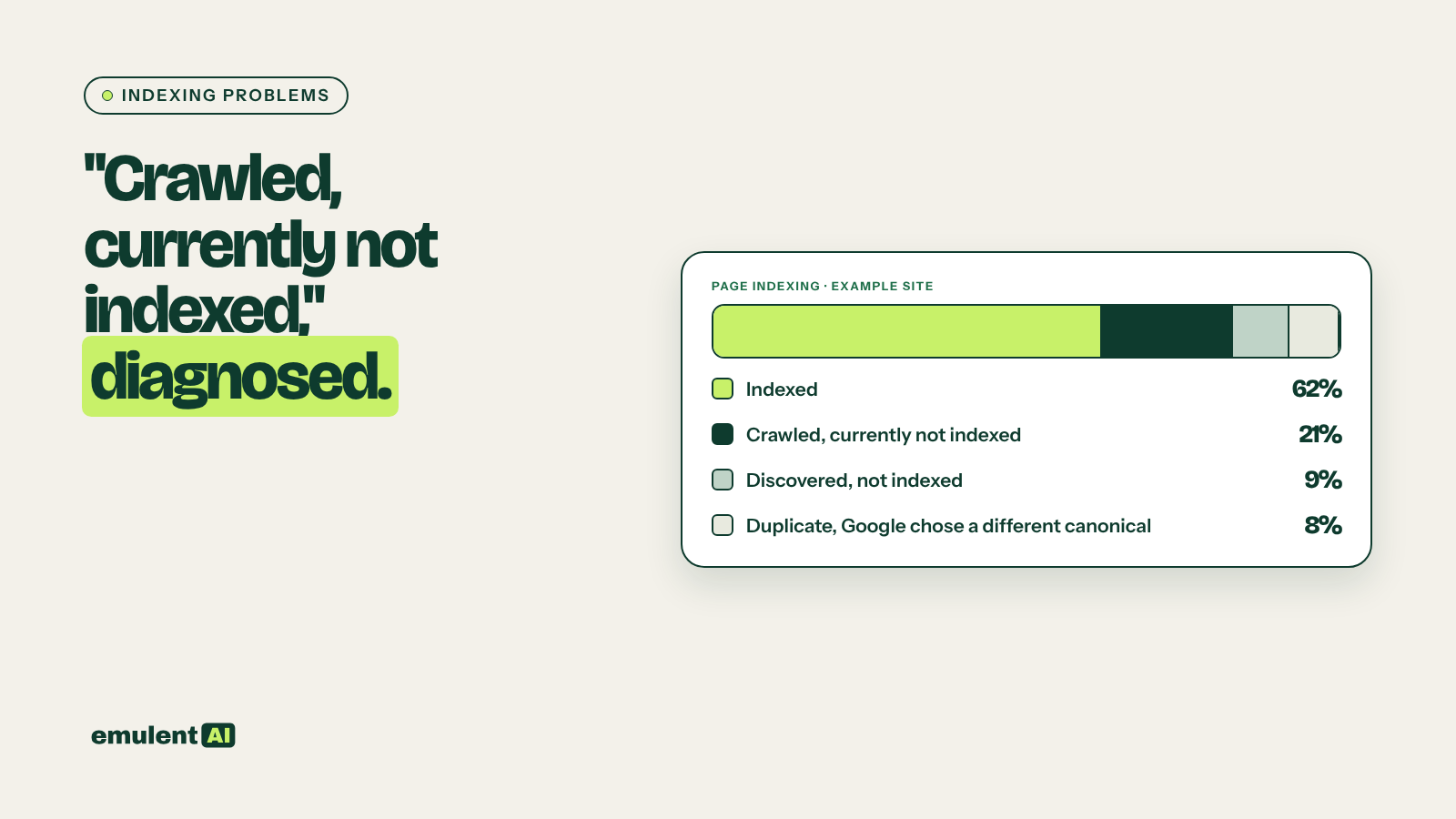
A page that is not indexed cannot rank, no matter how good it is. Search Console’s page indexing report tells you which pages Google left out and gives a reason, such as “Crawled – currently not indexed” or “Duplicate without user-selected canonical”. It does not tell you which of those pages matter, or what on your site caused the problem. Joining that report with a Screaming Frog crawl gives AI enough evidence to explain each group of unindexed pages and recommend a fix.
What you need
- Google Search Console, with access to the page indexing report and URL Inspection
- Screaming Frog, crawling with the sitemap included and Search Console connected
- Your XML sitemap URLs
- An AI assistant that reads CSV files, such as Claude
The common reasons and what they usually mean
| Search Console reason | What it usually means |
|---|---|
| Crawled – currently not indexed | Google fetched the page and chose not to index it, often because it looks thin, duplicated or low value compared with other pages |
| Discovered – currently not indexed | Google knows the URL exists but has not crawled it yet; often weak internal linking, a very large site, or slow server responses |
| Duplicate without user-selected canonical | Google sees the page as a duplicate and picked another URL as the main version |
| Duplicate, Google chose different canonical than user | You set a canonical, but Google disagreed and picked another URL |
| Alternate page with proper canonical tag | Working as intended: the page points to another URL as canonical |
| Excluded by noindex tag | The page tells Google not to index it |
| Blocked by robots.txt | Google is not allowed to crawl the page |
| Page with redirect, Not found (404), Soft 404 | The URL redirects, is missing, or looks empty to Google |
Some of these are fine. Redirected URLs, intentional noindex pages and alternates with correct canonicals are supposed to be out of the index. The work is finding pages that should be indexed and are not.
Step 1: Export the indexing data
In Search Console, open Indexing > Pages. Click each reason under “Why pages aren’t indexed” and export its example URLs. Search Console shows up to 1,000 examples per reason. For larger sites, use the URL Inspection API (Screaming Frog can call it during a crawl under Configuration > API Access > Google Search Console) to get the index status of every crawled URL.
Step 2: Crawl and export the matching data
From Screaming Frog, export for every URL: status code, indexability and reason, canonical URL, meta robots, X-Robots-Tag, word count, near-duplicate status, crawl depth, number of unique internal links in, whether it is in the sitemap, response time, and the Search Console index status if you used the API.
Step 3: Have the AI join and diagnose
Attached are (1) Search Console unindexed URLs with their reason, and (2) a
Screaming Frog export for the same site.
1. Join on URL. For each unindexed URL, show the Search Console reason next to
   the crawl data.
2. Separate URLs that are correctly excluded (redirects, intentional noindex,
   alternates with a correct canonical, parameter or filter URLs) from URLs
   that look like they should be indexed.
3. For the should-be-indexed URLs, group them by likely cause:
   - noindex or robots.txt block applied by mistake
   - canonical pointing elsewhere
   - thin content (under 300 words) or near-duplicate of another page
   - weak internal linking (2 or fewer links in) or deep crawl depth (4+)
   - missing from sitemap
   - slow response (over 1 second)
   - no clear cause in the data
4. For each group, count URLs, give 3 examples, and explain the cause in plain
   words.
5. Note any URL template or folder where the problem concentrates.
Output a summary and a URL-level CSV.
The folder and template pattern in point 5 usually points to the root cause. If 400 of 450 unindexed pages sit under /tag/ or /location/, the fix is in that template or that content type, not in 400 separate pages.
Step 4: Confirm with URL Inspection
For 3 to 5 URLs in each group, run URL Inspection in Search Console. Check the user-declared and Google-selected canonical, whether the page can be crawled, and the rendered HTML. A page that looks complete in a browser can render nearly empty to Google if key content loads through JavaScript that fails.
Step 5: Apply the fix by cause
| Cause | Fix |
|---|---|
| Mistaken noindex or robots.txt block | Remove it; check SEO plugin settings for post types and taxonomies |
| Canonical pointing elsewhere | Correct the canonical to self-reference, or accept that the other URL is the main version |
| Thin or near-duplicate content | Expand the page with content unique to it, merge it with the page it duplicates, or noindex it if it serves no searcher |
| Weak internal linking | Add links from related, well-linked pages and from hub or category pages |
| Missing from sitemap | Add it, and remove redirected or noindexed URLs from the sitemap |
| Slow responses | Improve server response time and caching; on large sites, reduce low-value URLs that waste crawling |
After fixing a group, use “Validate fix” for that reason in Search Console, and request indexing for the most important URLs.
Step 6: Prevent it coming back
Most indexing problems come from templates and site changes: a plugin update that noindexes a post type, a redesign that drops internal links, a migration that canonicalizes pages to staging URLs. Our guide to redirect mapping for migrations covers the checks to run around URL changes. Add the index status of your top pages to every technical audit summary, and check the page indexing report monthly for sudden jumps in any reason.
Put this to work with Bill.
Send Bill your exports and tell him what you are trying to fix. He’ll tell you which of these workflows to run first.
Contact Bill directly
Or call 773-791-3197