This guide is part of our series on AI for technical SEO audits.
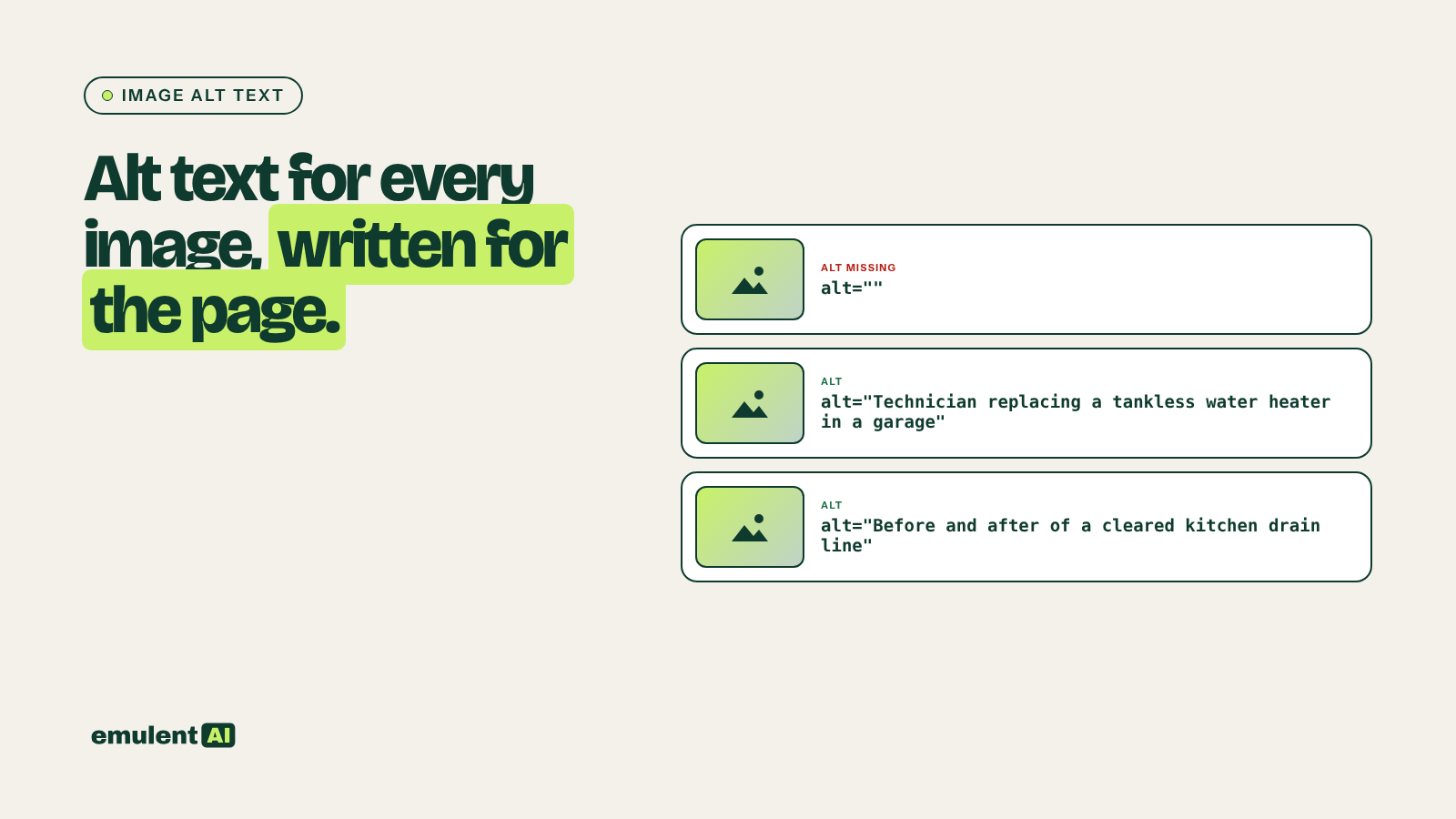
Alt text is the written description of an image in the HTML. Screen readers read it aloud to people who cannot see the image, browsers show it when the image fails to load, and search engines use it to understand what the image shows. Most sites have hundreds of images with no alt text because nobody had time to write it. AI models that can see images can write accurate descriptions in bulk, and Screaming Frog finds every image that needs one.
What you need
- Screaming Frog, to find images missing alt text and the pages they appear on
- An AI assistant that can view images, such as Claude
- Access to update alt text in your CMS (in WordPress, the media library or WP-CLI)
What good alt text looks like
- It describes what the image shows, in the context of the page. A photo of a technician on a roof is “technician replacing shingles on a two-story home” on a roofing page.
- It is short: usually one sentence, under about 125 characters.
- It skips “image of” or “photo of”; screen readers already announce that it is an image.
- It includes a keyword only when the keyword describes the image. Stuffing alt text with keywords is a spam signal and makes the site worse for screen reader users.
- Decorative images (dividers, background textures, icons next to text that says the same thing) get an empty alt attribute, alt=””, so screen readers skip them.
- Images that contain text, such as charts or infographics, describe the main point the image makes.
Step 1: Find the images
Crawl the site in Screaming Frog. In the Images tab, filter by “Missing Alt Text” and “Missing Alt Attribute”. Then use Bulk Export > Images > Images Missing Alt Text Inlinks to get each image URL with the page it appears on. Add the page title and H1 from the Internal tab so the AI knows the context.
If the same image appears on many pages (a logo or a stock photo), you only need to write its alt text once in the media library, though the page context may change what fits.
Step 2: Sort decorative from informative
Attached is a list of images missing alt text, with image URL, file name, page
URL, page title and H1.
Using file names, image dimensions and where they appear, flag images that are
likely decorative: icons under 64 pixels, spacers, background patterns, images
repeated in the header or footer of every page. Mark them DECORATIVE.
Mark the rest DESCRIBE. Give a reason for each DECORATIVE flag.
Check the DECORATIVE list by eye. A small icon can still carry meaning, such as a warning symbol with no text beside it.
Step 3: Have the AI write the descriptions
Upload the images in batches with the page context:
For each attached image, write alt text using its page title and H1 as context.
Rules:
- Describe what is in the image that is relevant to this page, in one sentence,
  under 125 characters.
- Do not start with "image of" or "picture of".
- Use the page's main topic words only if they describe the image.
- Do not guess at things you cannot see: names of people, exact locations,
  brand of product, unless they appear in the image or the page title.
- For charts or images with text, state the main point or the text shown.
Output CSV: image URL, page URL, alt text, character count.
The rule about not guessing is the important one. An AI model may confidently name a person, a building or a city it cannot actually identify. A wrong description is worse than none.
Recent versions of Screaming Frog can also call an AI API during the crawl through custom JavaScript snippets, which writes alt text suggestions straight into the crawl results. This saves the upload step for large sites, but the same review rules apply.
Step 4: Review
Read every description for images showing people, products, places or anything sensitive. For product images on ecommerce sites, check the product name, color and variant against the product data. Spot-check 10 to 20 percent of the rest.
Step 5: Upload in bulk
In WordPress, alt text is stored on each image in the media library, but images already placed in posts keep the alt text they had when they were inserted. That means updating the media library alone may not change existing pages. Options:
- For images added through page builder image elements that read from the media library (such as an image block or a page builder’s image element), updating the media library alt text is usually enough.
- For images inside post content, update the alt attribute in the post HTML, either by hand for a small number or with a search-and-replace script for many.
- For media library updates in bulk, WP-CLI can set the alt field from a CSV. Hosts that offer SSH access, including Kinsta, let you run WP-CLI directly.
After uploading, clear the page cache and re-crawl to confirm the Missing Alt Text count dropped.
Step 6: Make it part of publishing
The backlog only stays cleared if new images get alt text when they are uploaded. Add alt text to your publishing checklist, and include the missing alt text count in each technical audit summary. Product and article images can also be referenced in structured data, which our guide to schema markup generation covers.
Put this to work with Bill.
Send Bill your exports and tell him what you are trying to fix. He’ll tell you which of these workflows to run first.
Contact Bill directly
Or call 773-791-3197