This guide is part of our series on using AI for local SEO.
Each physical location gets its own LocalBusiness block on its own location page, with details that match its Google Business Profile exactly. AI can generate 5 or 500 of these blocks from one spreadsheet in minutes. The catch is that the spreadsheet has to be right, and every block has to be validated before it goes live.
Google’s local business structured data documentation (updated September 8, 2026) lists two required properties, name and address, and recommends geo, openingHoursSpecification, telephone, url, priceRange and department. It says to define each location as its own LocalBusiness and to use the most specific subtype available, such as Plumber, Dentist or AutoRepair.
What you need
- An AI assistant that accepts file uploads, such as Claude
- Access to each location’s Google Business Profile
- Google’s Rich Results Test and the Schema Markup Validator at validator.schema.org
- Access to the WordPress site (or whatever CMS holds the location pages)
Step 1: Build the master location sheet
Everything comes from one spreadsheet with a row per location. Copy each value from the live Google Business Profile, not from memory or an old brochure. Columns:
- Location name exactly as it appears on the GBP
- Street address, suite, city, state, ZIP
- Local phone number
- Latitude and longitude, to at least 5 decimal places
- Opening hours for each day, plus seasonal or holiday closures with dates
- GBP URL (the maps link with the CID)
- GBP primary and secondary categories
- Towns served
- Location page URL
- Photo URL of the location
- Price range, if you want to show one
Step 2: Pick the right type for each location
For each row in the attached location sheet, map the GBP primary category to the
most specific schema.org LocalBusiness subtype. If no subtype fits exactly, use
the closest parent type and say so in a notes column. If a location offers
services that match more than one subtype (for example Plumber and HVACBusiness),
list both. Do not invent subtypes; only use types listed on schema.org.
Check the answers on schema.org/LocalBusiness. Models sometimes produce types that sound right but do not exist. When a business fits several types, Google’s documentation says to list them as an array in @type, because additionalType is not supported.
Step 3: Generate the JSON-LD
Upload the sheet with this prompt:
For each location in the attached sheet, write one JSON-LD block using the
@type from the type column. Include: @id (location page URL + "#location"),
name, url, telephone in +1 format, address as PostalAddress, geo with at least
5 decimal places, openingHoursSpecification grouped by identical hours, image,
priceRange if given, areaServed as a list of City objects from the towns-served
column, hasMap with the GBP URL, sameAs with the GBP URL and any location-specific
social profiles, and parentOrganization pointing to the main site's Organization
@id (https://www.example.com/#organization).
Rules:
- Use only values from the sheet. If a value is blank, leave the property out.
- Do not add aggregateRating or review.
- Name must match the GBP name exactly, with no added keywords.
Output each block in its own code block, labeled with the location page URL.
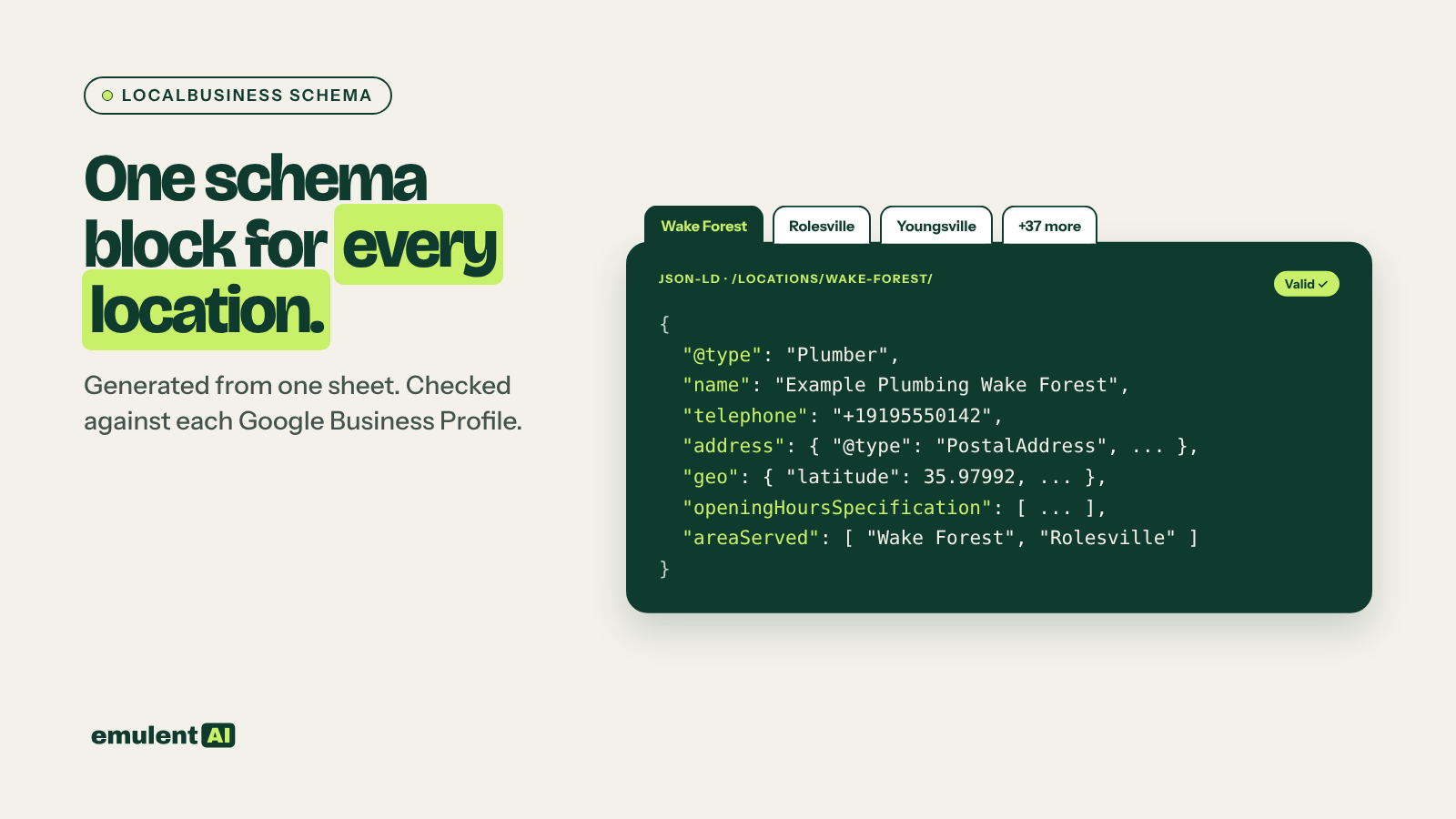
One block should look like this (fictional business):
{
  "@context": "https://schema.org",
  "@type": "Plumber",
  "@id": "https://www.example.com/locations/wake-forest/#location",
  "name": "Example Plumbing Wake Forest",
  "url": "https://www.example.com/locations/wake-forest/",
  "telephone": "+19195550142",
  "image": "https://www.example.com/wp-content/uploads/wake-forest-shop.jpg",
  "priceRange": "$$",
  "address": {
    "@type": "PostalAddress",
    "streetAddress": "123 Main St, Suite 4",
    "addressLocality": "Wake Forest",
    "addressRegion": "NC",
    "postalCode": "27587",
    "addressCountry": "US"
  },
  "geo": {
    "@type": "GeoCoordinates",
    "latitude": 35.97992,
    "longitude": -78.50972
  },
  "openingHoursSpecification": [
    {
      "@type": "OpeningHoursSpecification",
      "dayOfWeek": ["Monday", "Tuesday", "Wednesday", "Thursday", "Friday"],
      "opens": "07:30",
      "closes": "17:30"
    },
    {
      "@type": "OpeningHoursSpecification",
      "dayOfWeek": "Saturday",
      "opens": "08:00",
      "closes": "12:00"
    }
  ],
  "areaServed": [
    { "@type": "City", "name": "Wake Forest" },
    { "@type": "City", "name": "Rolesville" },
    { "@type": "City", "name": "Youngsville" }
  ],
  "hasMap": "https://maps.google.com/?cid=0000000000000000000",
  "sameAs": ["https://maps.google.com/?cid=0000000000000000000"],
  "parentOrganization": { "@id": "https://www.example.com/#organization" }
}
Step 4: Leave out the review stars
Do not add aggregateRating or review to your own location schema. Google’s documentation recommends those properties only for sites that collect reviews about other businesses. Marking up your own Google reviews on your own site will not produce stars and can lead to a manual action. Show reviews on the page as regular content instead.
Step 5: Validate every block
- Paste each block into the Rich Results Test and the Schema Markup Validator.
- Ask the AI to cross-check the blocks against the sheet: “Compare every name, address, phone and hours value in these JSON-LD blocks to the attached sheet and list any mismatch.” It catches transposed digits and wrong suite numbers faster than a person will.
- Spot-check five locations against the live GBP. If the GBP says 7:00 and the sheet says 7:30, fix the sheet first, then regenerate.
Step 6: Install it in WordPress
On a WordPress site, there are three workable options:
- A custom HTML block or raw HTML element at the bottom of each location page, holding the script tag. JSON-LD works in the page body. This is the quickest route for a handful of locations, but it is easy to delete by accident when someone edits the page.
- A header code plugin that allows per-page snippets, such as WPCode. This keeps the schema out of the page builder layout.
- For 20 or more locations, store the location data in custom fields (ACF or similar) on each location page and have a small function in the child theme print the JSON-LD from those fields. Change the hours once in the field and the schema updates with it.
If Yoast or Rank Math is active, it already outputs an Organization or LocalBusiness graph. View the page source and look for duplicate LocalBusiness blocks. Turn off the plugin’s local output for location pages, or connect the two with matching @id values.
After deploying, clear the page cache (on Kinsta, from MyKinsta or the Kinsta cache button in the WordPress admin bar). Then run URL Inspection in Search Console on a couple of pages to confirm Google sees the markup.
Step 7: Keep it in sync
Schema goes stale when hours, phone numbers or suites change and nobody updates the site. Once a month, export the current GBP data for every location (Semrush Listing Management, BrightLocal or the GBP API can do this) and give it to the AI with the live schema:
Compare the attached GBP export to the JSON-LD currently on each location page.
List every location where the name, address, phone, hours or website URL differ,
showing both values side by side.
Fix the source, regenerate the block, and update the master sheet so the next comparison starts clean. Broken or outdated schema is one of the causes covered in our guide to local performance decay, and the GBP data you collect here is the same data used in map pack analysis.
Put this to work with Bill.
Tell Bill which locations and towns matter most to you. He’ll tell you which of these workflows to run first.
Contact Bill directly
Or call 773-791-3197