This guide is part of our series on AI for branding and design.
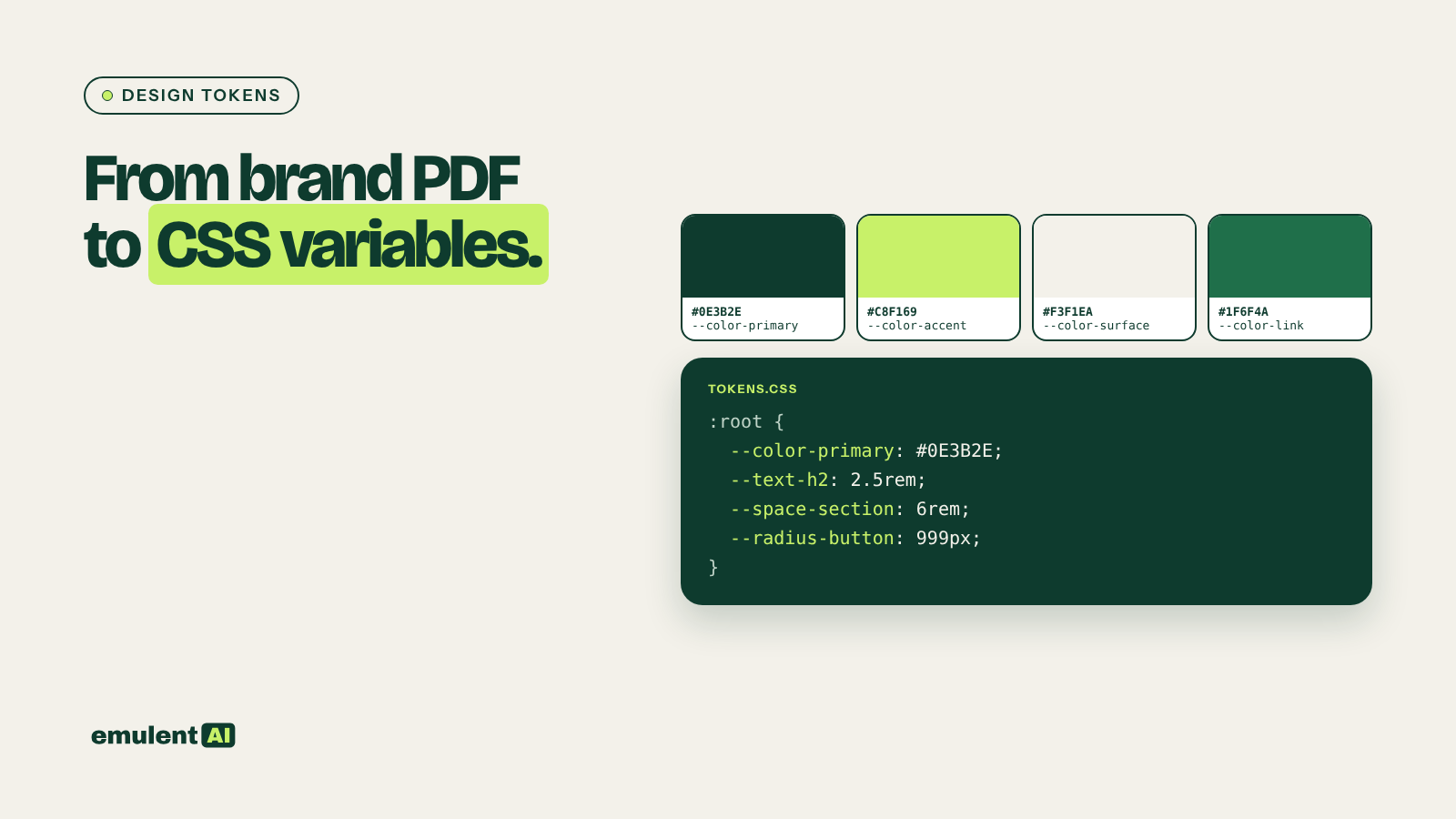
Design tokens are the named values a brand is built from: colors, font sizes, spacing, corner radius, button styles. Written as CSS variables (–color-primary: #0E3B2E;), they let a whole site change in one place. Many brands do not have them written down anywhere. The values live in a 60-page PDF, a Figma file nobody can find, or the CSS of a site built five years ago.
AI can pull those values out of a brand PDF or a live site and organize them into tokens in a few minutes. The part that needs a person is checking every value against the source.
What you need
- An AI assistant that accepts file and image uploads, such as Claude
- The brand guidelines PDF, if one exists
- The site’s CSS file, or screenshots of the main pages, if you are working from an existing site
- A color picker browser extension or the browser’s developer tools to check values
Step 1: Collect the sources
From a PDF, use the original file, not a scan, so the AI can read the text values. From a live site, save the main CSS file (in the browser’s developer tools, open the Sources or Network panel and save the theme stylesheet) and take screenshots of the homepage, a service page and a form.
Step 2: Extract the values
Attached are the brand guidelines PDF and the site's main CSS file.
Extract:
1. Every color with its hex value and where it is used (text, background,
   button, border, accent)
2. Font families, weights in use, and every font size, with where each is used
3. Spacing values used for padding and margins
4. Border radius values
5. Button styles: background, text color, padding, radius, hover state
Only report values that appear in the files. For any value you read from an
image instead of text, mark it "from image, verify."
List conflicts, such as a PDF color that differs from the CSS color.
Colors read from images are often a few values off because of compression and screen color. That is what the “verify” label is for.
Step 3: Turn them into a token set
Ask the AI to reduce the raw values to a clean set: usually 6 to 10 colors, a type scale of 6 to 8 sizes, a spacing scale and two or three button styles. Then have it write them as CSS variables:
:root {
  --color-primary: #0E3B2E;
  --color-accent: #C8F169;
  --color-surface: #F3F1EA;
  --text-body: 1.125rem;
  --text-h2: 2.5rem;
  --space-section: 6rem;
  --radius-button: 999px;
}
Ask it to show which raw values each token replaces, so you can see what will change.
Step 4: Apply them to the site
On a WordPress site, add the variables in the theme’s custom CSS area or a child theme stylesheet, then use them in your own CSS. Set the matching values in the theme’s global color and typography settings, so elements built with the theme or page builder use them too. Test on staging and compare the pages before and after.
Step 5: Document them
Ask the AI for a one-page token reference: each token, its value, where to use it and where not to. Add it to the brand guide and share it with everyone who builds pages, so new sections use the same values.
Checks before you ship
- Check every color marked “from image” with a color picker against the source.
- Check each text and background pair from the token set with a contrast checker; the accessibility checks guide covers how.
- Confirm font licensing covers web use before you add a font to the token set.
Put this to work with Bill.
Tell Bill about your next brand or website project. He’ll tell you which of these jobs to hand to AI first.
Contact Bill directly
Or call 773-791-3197