This guide is part of our series on AI for SEO reporting and analytics.
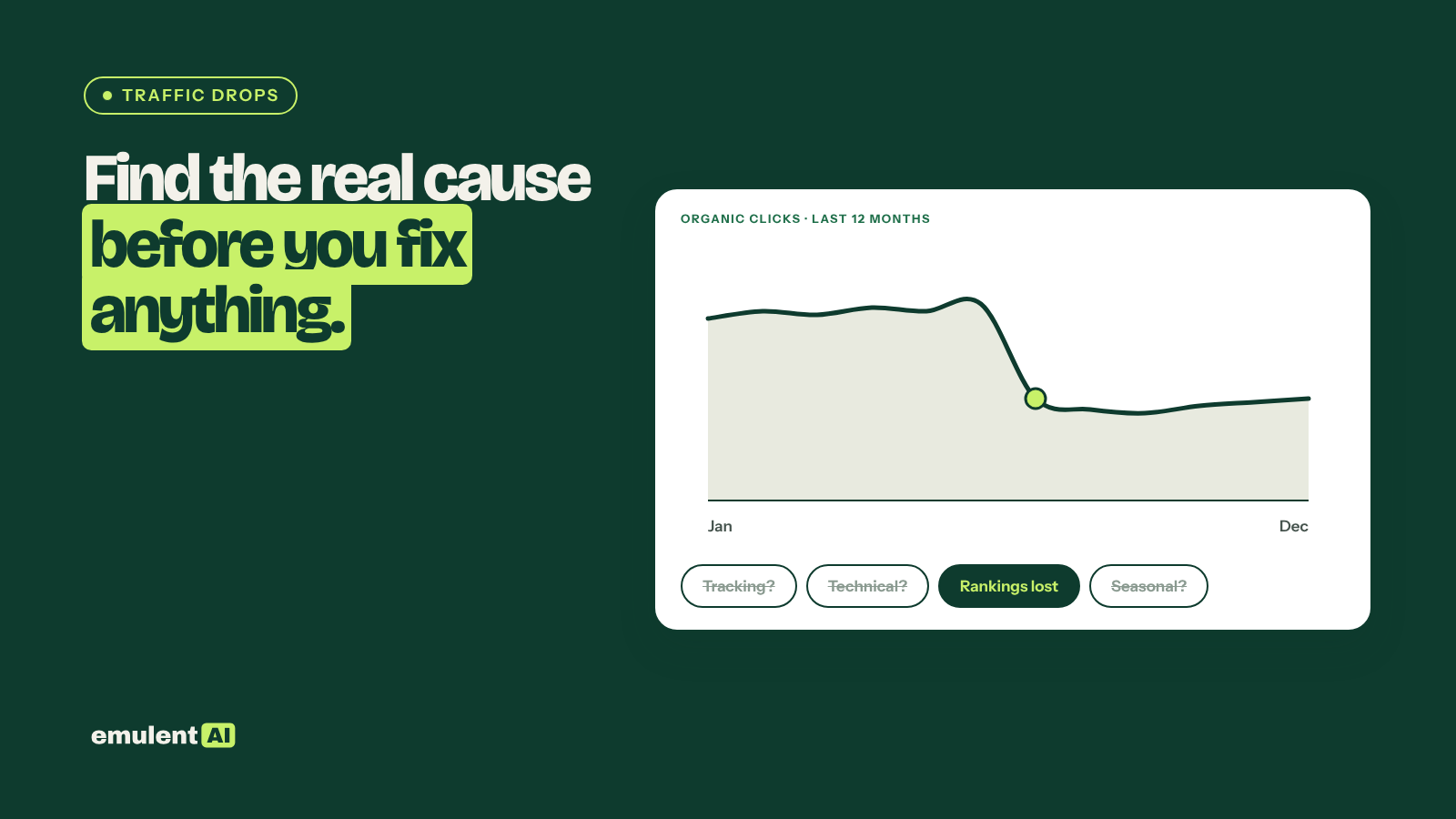
When organic traffic falls, the first guess is usually a Google update, and the first reaction is often to start rewriting pages. Many drops have duller causes: a tracking tag that stopped firing, a seasonal dip, a page that was accidentally noindexed, or one high-traffic page that lost its ranking. A structured investigation rules causes in or out with data before anyone changes the site. AI speeds that up by comparing several data sources at once.
What you need
- GA4: daily organic sessions and key events for the last 16 months
- Google Search Console: daily clicks and impressions, plus clicks by page and by query for the period before and after the drop
- Semrush: Position Tracking history and Organic Research position changes
- A log of site changes: releases, plugin updates, migrations, content changes
- Google’s Search Status Dashboard, for confirmed ranking updates
- An AI assistant that reads CSV files, such as Claude
Step 1: Confirm the drop and its shape
Export daily data from GA4 and Search Console for at least the last 16 months. Ask the AI:
Attached are daily GA4 organic sessions and daily Search Console clicks and
impressions for the last 16 months.
1. When did the drop start? Was it sudden (within 1 to 3 days) or gradual?
2. How large is it, compared with the same period last year and with the 4
   weeks before it started?
3. Did GA4 sessions and Search Console clicks fall together, or did only one
   fall?
4. Did impressions fall, or only clicks?
Answer with numbers and dates.
The answers to points 3 and 4 already narrow the search:
| Pattern | Most likely direction |
|---|---|
| GA4 down, Search Console unchanged | Tracking problem, not an SEO problem |
| Both down, same as last year’s pattern | Seasonality |
| Clicks and impressions both down | Lost rankings, lost indexing, or lower demand |
| Impressions unchanged, clicks down | Search results changed (AI Overviews, ads, other features) or titles became less appealing |
| Sudden drop | Technical change, manual action, or a ranking update |
| Gradual drop | Competitors, content decay, or slowly falling demand |
Step 2: Rule out tracking
If GA4 fell more than Search Console, check before anything else:
- Is the GA4 tag still on every page template? A theme change or new page builder layout can drop it.
- Did a consent banner change reduce how many visitors are tracked?
- Did anyone change GA4 filters, channel groupings or data streams?
- Did a domain or subdomain change break cross-domain tracking?
A tracking problem means traffic did not actually drop. Fix the tag and annotate the gap in your reports.
Step 3: Find where the drop is concentrated
Attached are Search Console clicks by page and by query for the 4 weeks before
the drop and the 4 weeks after it started, plus the same weeks last year.
1. Which pages lost the most clicks? What share of the total loss do the top
   10 pages account for?
2. Is the loss concentrated in one folder, template or content type?
3. Which queries lost the most clicks? Are they branded or non-branded?
4. For the top losing pages, did position, impressions or CTR change most?
5. Did any device or country lose far more than others?
A drop concentrated in a few pages or one section usually has a specific cause in those pages. A drop spread evenly across the whole site points to a sitewide technical issue or a broad ranking update.
Step 4: Check technical causes
For the pages that lost the most, check:
- URL Inspection in Search Console: is the page still indexed? Has the Google-selected canonical changed?
- The page indexing report: did any reason (noindex, redirect, 404, crawled but not indexed) jump around the drop date?
- Manual Actions and Security Issues reports in Search Console
- robots.txt and meta robots on the affected templates
- The site change log for releases, migrations or plugin updates on or just before the drop date
Step 5: Check rankings and search results
Export Semrush Position Tracking or Organic Research position changes for the affected keywords. Ask the AI which keywords lost positions, which competitors gained them, and whether new search features appeared. Then search the top 5 lost keywords yourself to see what ranks now. If an AI Overview or a new set of competitors appeared, the response is content and title work, not a technical fix.
Step 6: Line it up against a timeline
Build a timeline from these sources: the drop start date and shape, our site
change log, confirmed Google ranking updates from the Search Status Dashboard
(attached as a list with dates), and Semrush ranking changes.
For each possible cause (tracking, seasonality, technical change, lost
rankings, search results change, algorithm update, lower demand), say whether
the evidence supports, contradicts or does not address it. Label each as
CONFIRMED, LIKELY, POSSIBLE or RULED OUT, with the evidence.
An algorithm update is only a likely cause if the drop started within a few days of a confirmed update and the affected pages share the kind of weakness that update targeted. A drop that started two weeks before the update was caused by something else.
Step 7: Act on the confirmed cause
Fix tracking and technical problems right away. For lost rankings, compare the affected pages with what now ranks and improve them. For seasonality and lower demand, adjust expectations instead of the site. Write up the findings, including what was ruled out, for the monthly client report. If the drop hit leads more than traffic, our guide to conversion path analysis helps find which pages stopped converting.
Put this to work with Bill.
Send Bill your exports and tell him what you are trying to fix. He’ll tell you which of these workflows to run first.
Contact Bill directly
Or call 773-791-3197